Developer / Artwork / App ID
Verify the official listing & Understand the purchase
Shadowrocket Official Site & Manual is the official site and manual for Shadowrocket. Use the App Store product page to verify purchase details and the in-app interface to find settings. Check the price, system requirements, and purchase eligibility again when you buy.
- Developer: Shadow Launch Technology Limited
- App ID: 932747118
- One-time purchase
Verify the developer, official app icon, and App ID
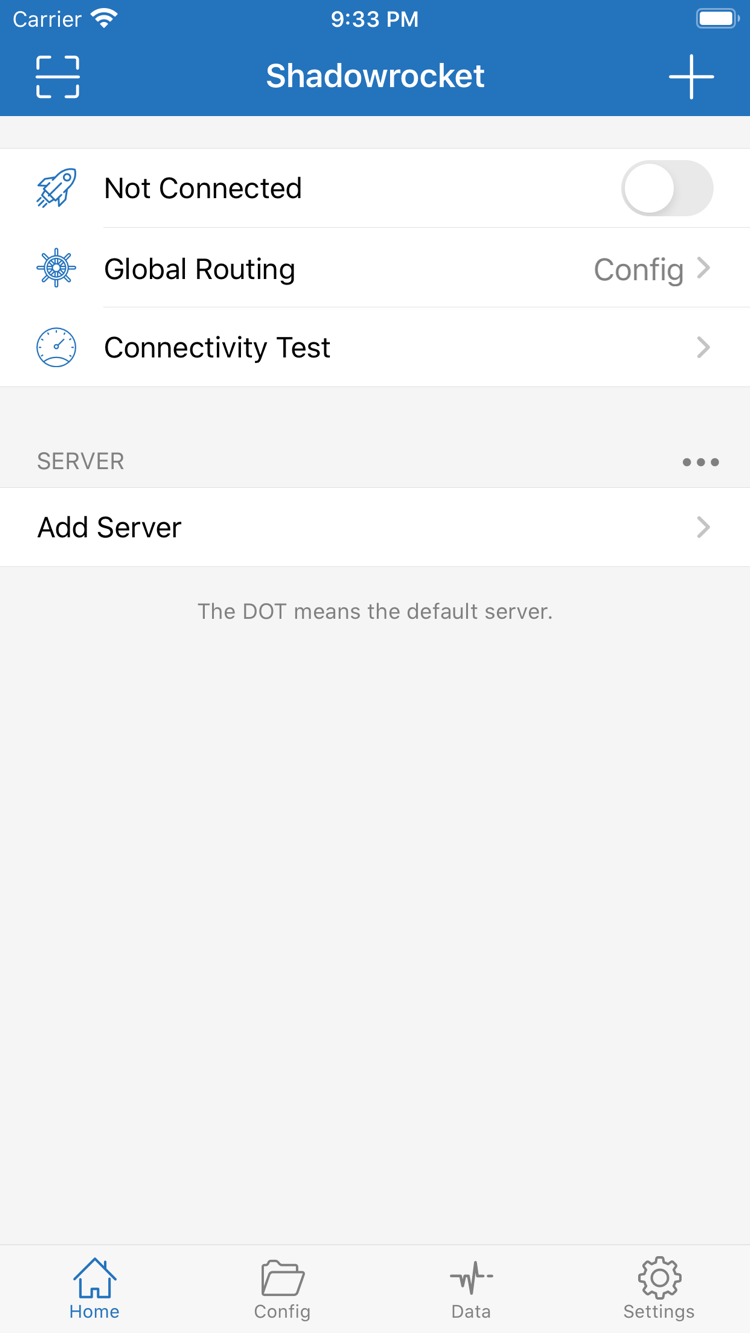
On the product page, check the app name, Shadowrocket, and the developer, Shadow Launch Technology Limited. The app icon should match the official icon in this site’s header. The App ID in the product page URL is 932747118. Check the name, icon, and developer together; do not rely on the name shown in search results alone.
Search results may show apps with similar names or icons. Open the full product page to check its details rather than relying on the results list. The App Store button on this site links directly to the product page. If the current storefront does not show your purchase status, check the account and storefront in use in the App Store, then follow the store’s instructions.
A product page that will not load and an app that has not been purchased are different issues. For the former, check App Store access and storefront availability; for the latter, check your account’s purchase history. Do not rely on cached prices in your browser or screenshots to determine current eligibility, and do not confuse an account used for another service with your App Store purchase account.
App purchase ≠ server access plan
Shadowrocket is a closed-source commercial app sold as a one-time purchase. The US price reference is $2.99; other storefronts show local currency. The price shown on the App Store page before payment is the current price. The purchase covers use of the client, not access to servers or a guarantee of connection quality.
App purchase ≠ server access plan. After purchasing, import your own existing subscription or server details to provide the parameters needed for the corresponding connection. This site does not provide, sell, or recommend servers or subscriptions. This manual covers entering existing details, choosing a routing mode, checking rules, and troubleshooting connection issues.
Subscription updates and app updates are different. The former rereads connection details from an existing subscription URL; the latter are client updates managed by the App Store. They affect different things. When troubleshooting, first identify what changed, then decide whether to check server settings or app configuration.
Purchase history and moving to a new device
When changing devices or reinstalling, sign in to the App Store with the Apple ID used for the purchase and find Shadowrocket in your purchased items. Compare the acquisition status on the product page with your account’s purchase history. If you are prompted to pay again, check the account and storefront before purchasing again.
Check the App Store page for purchase eligibility on iPhone and iPad, Family Sharing terms, and compatibility with other devices. After restoring the app, you still need to restore the connection details and configuration files required on this device. Purchase history does not store server passwords or confirm that a subscription is still active.
Before migrating, decide which configurations to keep and check the relevant iCloud settings. After migration, check the entries in Home, the active file in Config, and On Demand in Settings. In particular, distinguish between a file being present and being enabled, then test actual access.
How to restore a past purchase →
System requirements, updates, and App Store storefronts
Check the App Store page for system requirements. Before installing, review the compatibility section to confirm that your device is supported; do not assume that because the app installs on another device, it will work on yours. If you see a system prompt, check the requirements in the store’s instructions before changing server settings.
Update the client through the App Store. You can review automatic update options in the system’s store settings. If the interface changes after an update, look for the relevant options under Home, Config, Settings, and other feature names, then check the active configuration and selected server. There is no need to recreate all your entries just because their location has changed.
Your storefront determines which product details, currency, and payment terms are shown. Check prices in the storefront you actually use, and review the compatibility and in-app purchases sections before buying. For pricing and purchase restoration, see the purchase guide; for connection issues, follow the troubleshooting steps in the tutorial.
See pricing and purchase details →